

Time Clock
Time clock records when people start and finish their shifts at a studio. Each person uses a four-digit PIN on a registered studio device. Timesheets totals their hours and classifies regular, overtime, and double time for export to your payroll provider.
Time clock works without Payroll. REV23 does not calculate wages or overtime pay, and clocked hours do not become payroll earnings.
Turn it on
Section titled “Turn it on”The subscription owner turns on Time clock under Settings → Cloud → General → Features. Like the other features, it is included in the plan.
In Get Started, use Choose who clocks in to select the people who will record shifts. You can change a person’s Uses the time clock setting later under Settings → Cloud → Artists & Team Members → Compensation → Time clock. Their studio assignments can override that choice for a particular location.
People joining without a PIN receive temporary 0000. Existing PINs stay unchanged. The first clock-in or clock-out with a temporary PIN requires a new PIN that differs from it.
Turning off someone’s participation does not end their open shift. Clock them out or arrange for them to finish it before changing access. Turning off the whole Time clock feature ends every open shift at that moment; those clock-outs need review when the feature is turned back on.
Set up a studio device
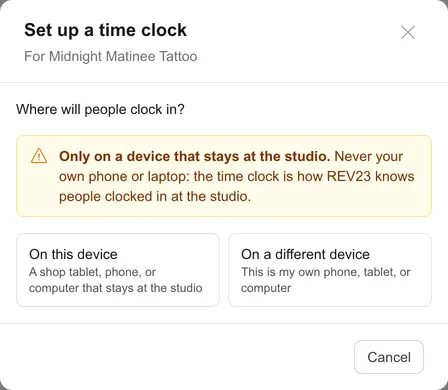
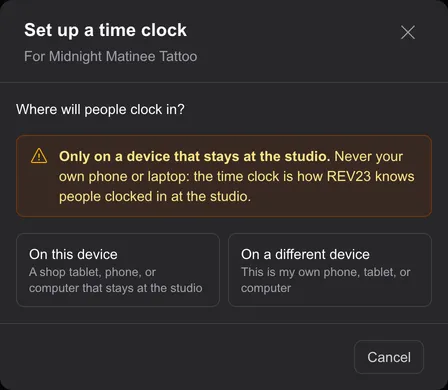
Section titled “Set up a studio device”Use a tablet, phone, or computer that stays at the studio. Set it up on that device; registering your own phone or laptop would let you record shifts away from the studio.
- Sign in on the studio device.
- Select Set up a time clock in Get Started, on the dashboard before the studio has its first clock, or under Timesheets → On the clock.
- Choose On this device, name the clock, and confirm setup. Set your own PIN if you have not already chosen one.
If you are configuring REV23 from your own device, choose On a different device, then sign in on the studio device to finish registration.
On the web, setup opens the time clock in its own tab. In the REV23 app, it opens on the current device. After registration, Open time clock on the dashboard opens that device’s clock again.
If the studio already uses a Kiosk, turn on Use this kiosk as a time clock in kiosk setup. People can record shifts on the same device customers use for forms.
Clock in and out
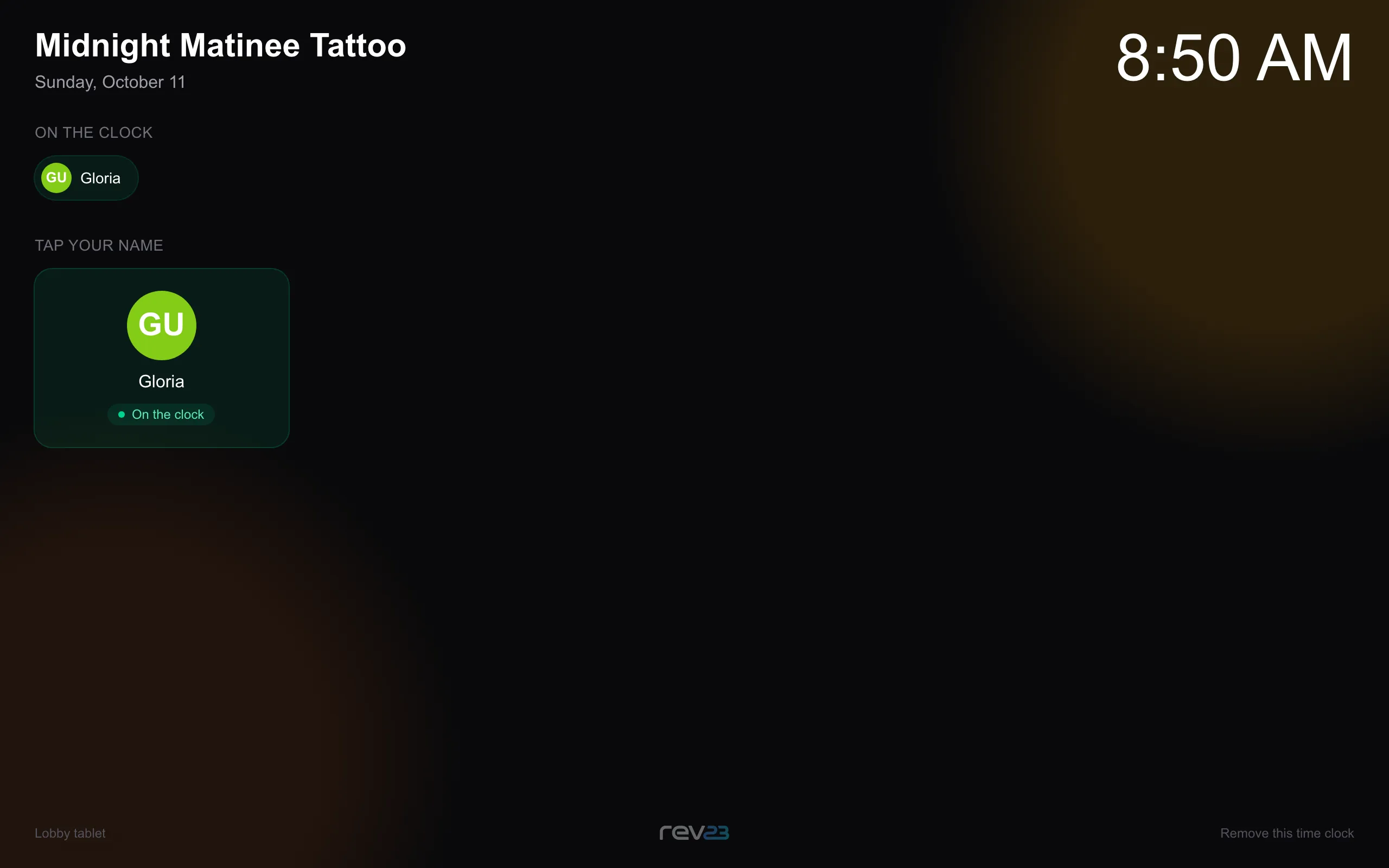
Section titled “Clock in and out”Select your name and enter your PIN. The time clock records the clock-in or clock-out to the minute. Times use the studio’s time zone. For an unpaid break, clock out when you leave and clock back in when you return.
Only one shift can be open for you across all studios. If you are still clocked in elsewhere, confirm ending that shift before starting one here; the earlier clock-out needs review.
Your account menu keeps your current clock status. Open My time to review your shifts and weekly totals. If you forget to clock out, use the forgotten clock-out procedure.
Set or change your own Time clock PIN under Me. Enter the four digits twice. You can do this while signed in even if you have forgotten the old PIN.
A manager can select Set temporary PIN in your user settings. You must replace it on the time clock before recording your next clock-in or clock-out. Repeated wrong PINs temporarily block further attempts.
Remove or replace a time clock
Section titled “Remove or replace a time clock”Open Timesheets → On the clock, then → Manage time clocks, or open the studio’s Time clock settings. Revoke stops a device from recording further shifts. Its recorded entries remain.
To remove the registration from the device itself, select Remove this time clock and enter a manager’s own PIN. A temporary PIN cannot remove or exit the clock. In the REV23 app, leaving the clock also requires a manager’s PIN; exiting keeps its registration.
If a device loses its registration, register it again and select the clock it replaces. Registrations unused for 90 days are automatically revoked.
Permissions
Section titled “Permissions”Time Clock → Manage covers devices and temporary PINs and is included in the Manager role; choosing who clocks in requires Compensation → Manage. Changing overtime rules requires Payroll → Manage; see Roles & Permissions.