

Schedules
Availability starts with hours. Studio hours set the frame; a team member’s own hours narrow it. Anyone without their own hours is bookable during the studio’s. With Allow bookings outside studio hours on (Settings → Booking → Booking Settings), a member’s hours replace the frame instead — a night-owl artist can be booked past close, or on a day the studio never opens. A posted closure still binds.
Manage everything at Settings → Booking → Schedules; pick the studio or a person at the top. Team members manage their own from My Schedule.
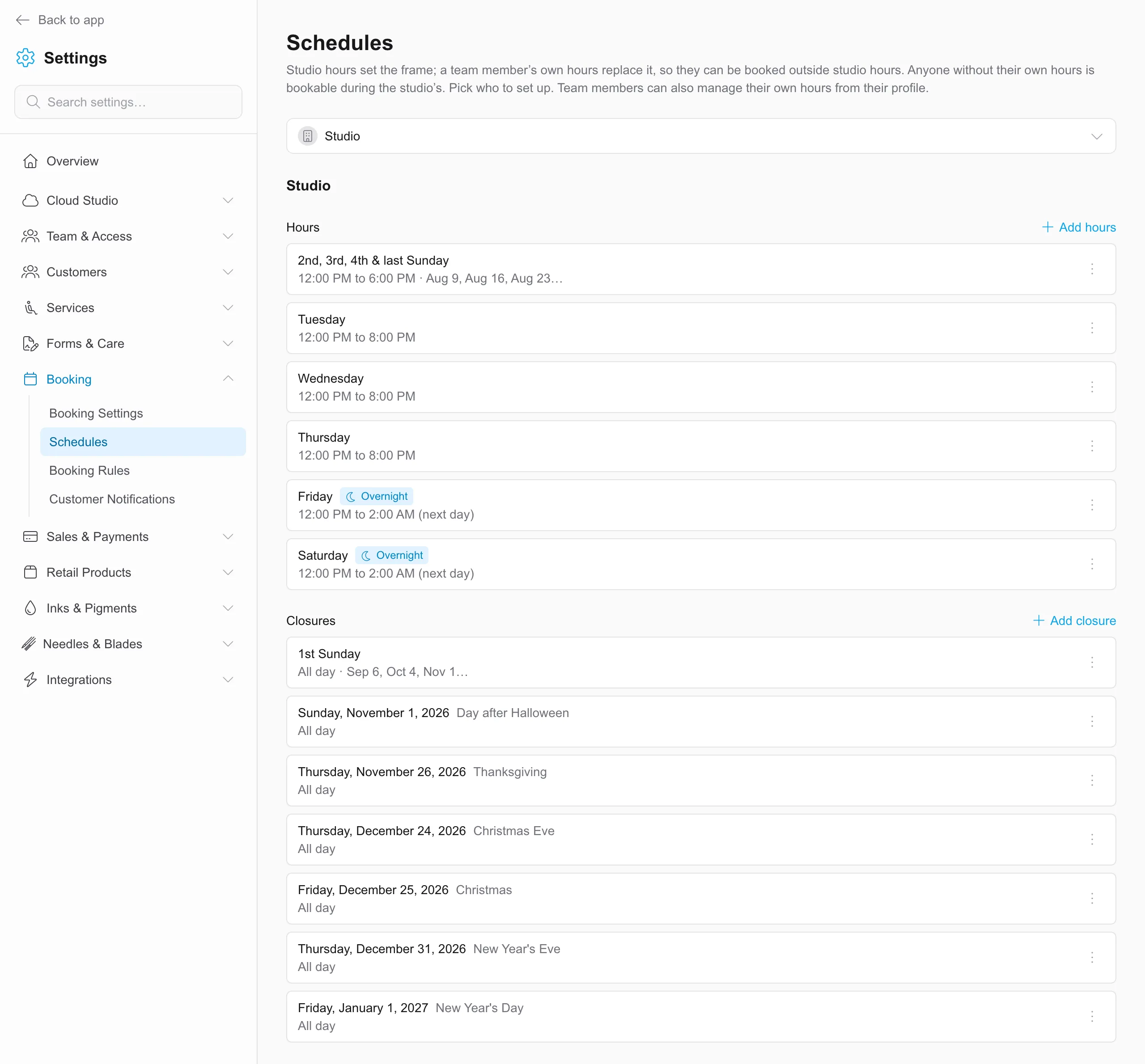
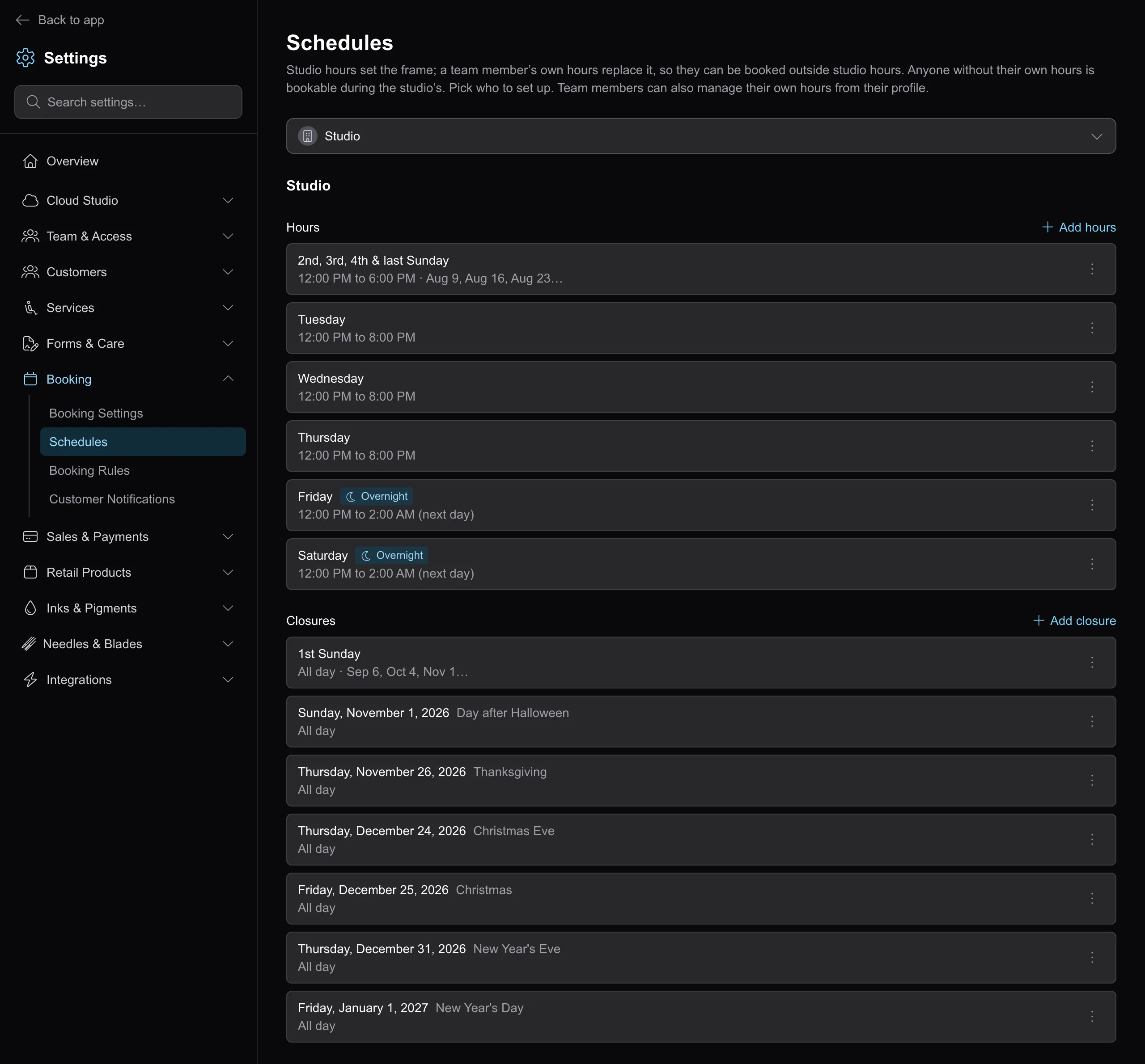
Regular hours
Section titled “Regular hours”A regular-hours row is an open window: From and To times — crossing midnight is fine (marked Overnight, staying open into the next day) — and, with more than one studio, a scope of one location or All studios. A row can run every week or repeat on any of the frequencies: every other week, certain weeks of the month, or a single date.
Studios where a provider appears
Section titled “Studios where a provider appears”Weekly schedule rows also determine which studio rosters include a provider. Studio assignments remain the outer boundary: an All studios weekly row applies across the person’s assigned locations, while studio-specific weekly rows place them only on those studios’ rosters. A person with no assignments is treated as available to every studio before their weekly schedule narrows the list.
If the person has no weekly schedule rows anywhere, REV23 falls back to studio assignments: assigned users appear at those locations, and unassigned users appear everywhere. One-time and patterned schedule rows change availability but do not establish a work location.
This roster is used by the calendar, public booking, Kiosk, and provider selection. It does not change which studios the user can open; workspace access continues to follow studio assignments.
Bookable for
Section titled “Bookable for”An open window normally takes anything you offer. Bookable for narrows that: select service categories and/or Consults on the window, and only what’s selected can book into it. Left empty, the window takes everything — there’s nothing to set up until you want a day to behave differently.
Two rules:
- A window’s selection speaks only for that window. Scoping Wednesday says nothing about the rest of the week. To make something exclusive to one day, exclude it from the other days.
- Consults are their own toggle, not a category. A window scoped to Tattoo doesn’t take consults, and a Consults-only window doesn’t take services. A day that does both needs both selected.
What it’s for:
- “Wednesday is my day off, but I’ll take consults.” One Wednesday window with only Consults selected (the row is labeled Consults only). Consults book; nothing else does.
- “I tattoo Wednesdays — and it’s also the only day I do consults.” Wednesday gets Tattoo plus Consults; the other working days get Tattoo alone. The other days do the real work here: leave them unscoped and consults could book any day of the week.
- “I tattoo all week but only pierce on Fridays.” Every day scoped to Tattoo, Friday to Tattoo plus Piercing. Your skills decide what you offer at all; Bookable for decides where in the week it lands.
Over-selecting is harmless: a window with every category plus Consults selected behaves exactly like an unscoped one. The scope only starts mattering when something is left out.
The boundaries:
- It’s per window, so one day can split. Tattoos noon to five and consults five to eight is two Wednesday rows with different selections.
- An appointment with mixed work needs a window that takes all of it. A tattoo-plus-piercing appointment won’t fit a window scoped to Tattoo alone.
- Studio windows can be scoped too, and the studio’s scope binds everyone inside its frame. A studio Wednesday scoped to Piercing makes Wednesday piercing-only for every artist, whatever their own hours say. (When Allow bookings outside studio hours is on, a member’s own windows replace the frame, scope included.)
- Time off can’t be scoped. A closed window closes the day for everything.
- It shapes only what’s offered online. Online booking and the slot finder skip windows that don’t take the request; a booking you place directly on the calendar isn’t blocked.
Time off
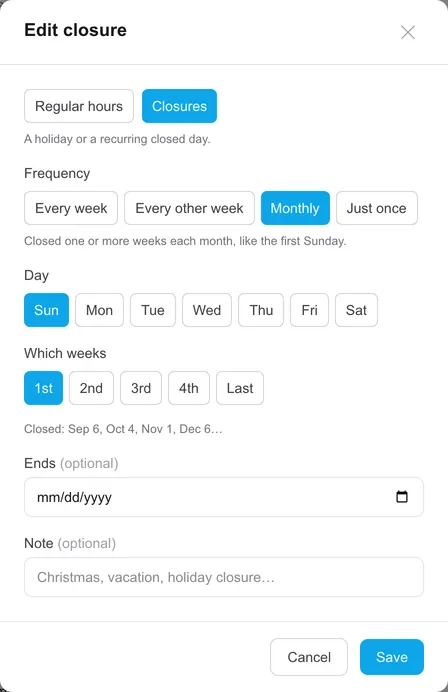
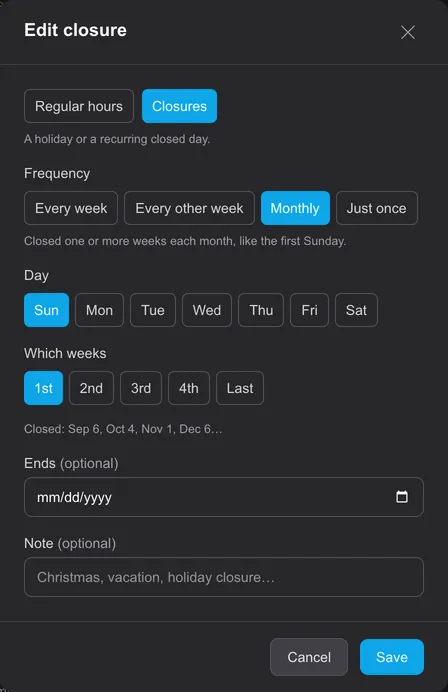
Section titled “Time off”Time off closes the whole day — rows have no times. It repeats on the same frequencies as hours: a one-date vacation day, closed every Monday, or “closed the first Sunday” of each month. Give the row a note (“Christmas, vacation, holiday closure…”) and it shows up labeled on the calendar.
A studio closure closes every artist’s calendar for the day. Personal time off closes one column.
Allow bookings outside studio hours does not override a studio closure. An artist’s hours can stand alone on a day with no studio schedule, but a date marked closed stays closed for every artist.
This rule applies to online availability. Staff can still book a closed day from the calendar. Use a calendar event for a partial day or a range of dates; schedule closures apply to whole individual days.
Frequency
Section titled “Frequency”Regular hours and time off repeat the same four ways:
- Every week — the same thing every week: Saturday hours, or closed every Monday.
- Every other week — alternating weeks, with a preview of the exact dates and a “start a week later” toggle for aligning the alternation.
- Monthly — one or more weeks each month, picked by ordinal: 1st, 2nd, 3rd, 4th, Last. “First and third Saturday” is one row; so is “closed the first Sunday.”
- Just once — a single date, open or closed.
Every other week and Monthly rows can take an end date, for an alternation or closure that shouldn’t run forever.
My Schedule
Section titled “My Schedule”Everything a team member controls about their own booking lives on My Schedule:
- My hours — your own weekly hours, set the same way as studio hours, frequencies and Bookable for included. Until you add any, you’re bookable whenever the studio is open.
- How I get booked — the booking mode for each of your services. Modes are set per service on My Skills, alongside pricing.
- My policies — your own customer-facing terms. Anything you leave blank uses the studio’s policies.
- My booking rules — booking rules that apply only to your bookings, like blocking same-day requests.
Your share actions live here too: Booking link opens your permanent pinned link and QR code, and Book with me sends a one-time invite. You can also add your appointments to another calendar app through Calendar Subscriptions.