

Calendar
The calendar is where dates and times get managed. Reviewing requests, collecting deposits, and deposit decisions live on the Bookings page.
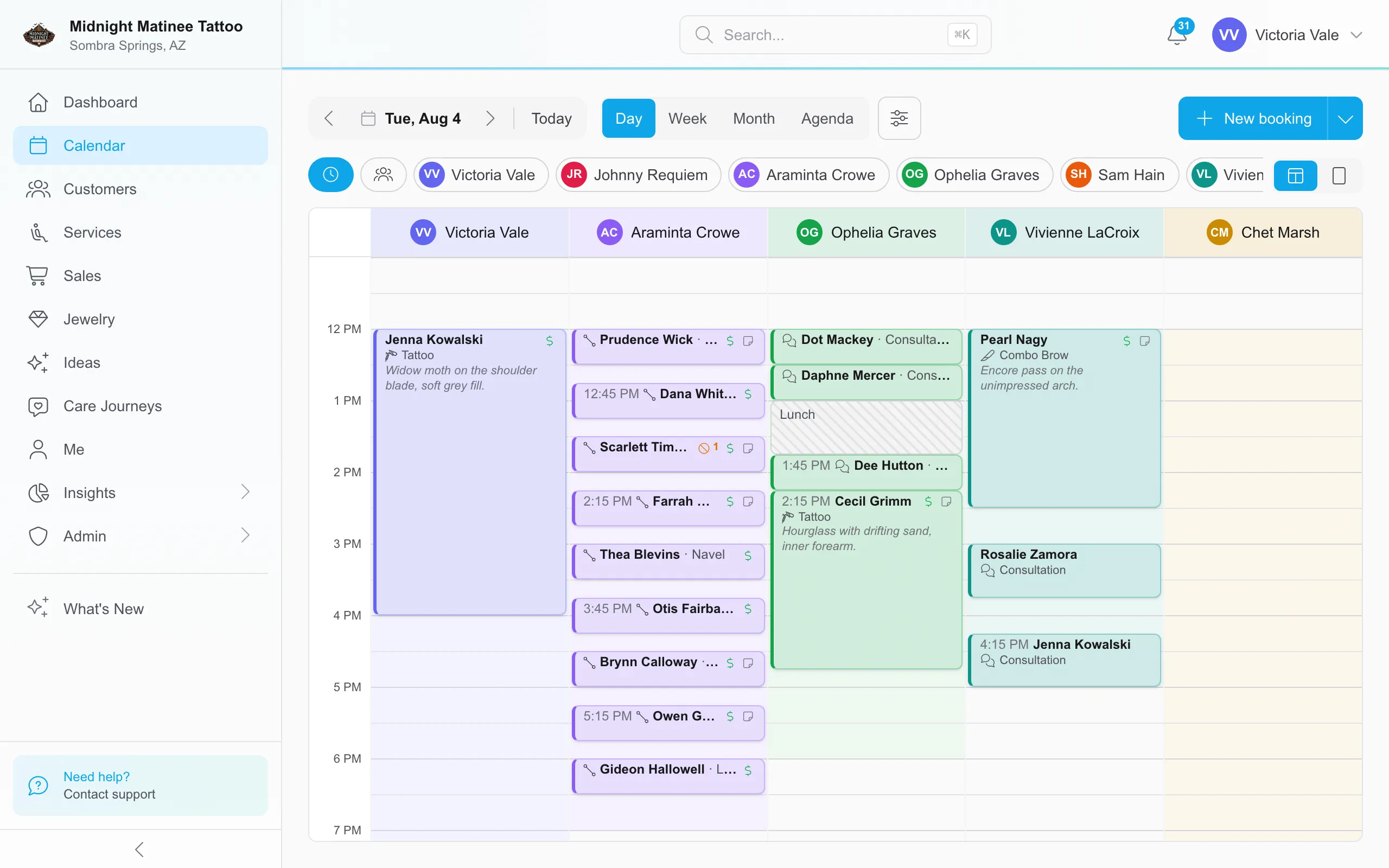
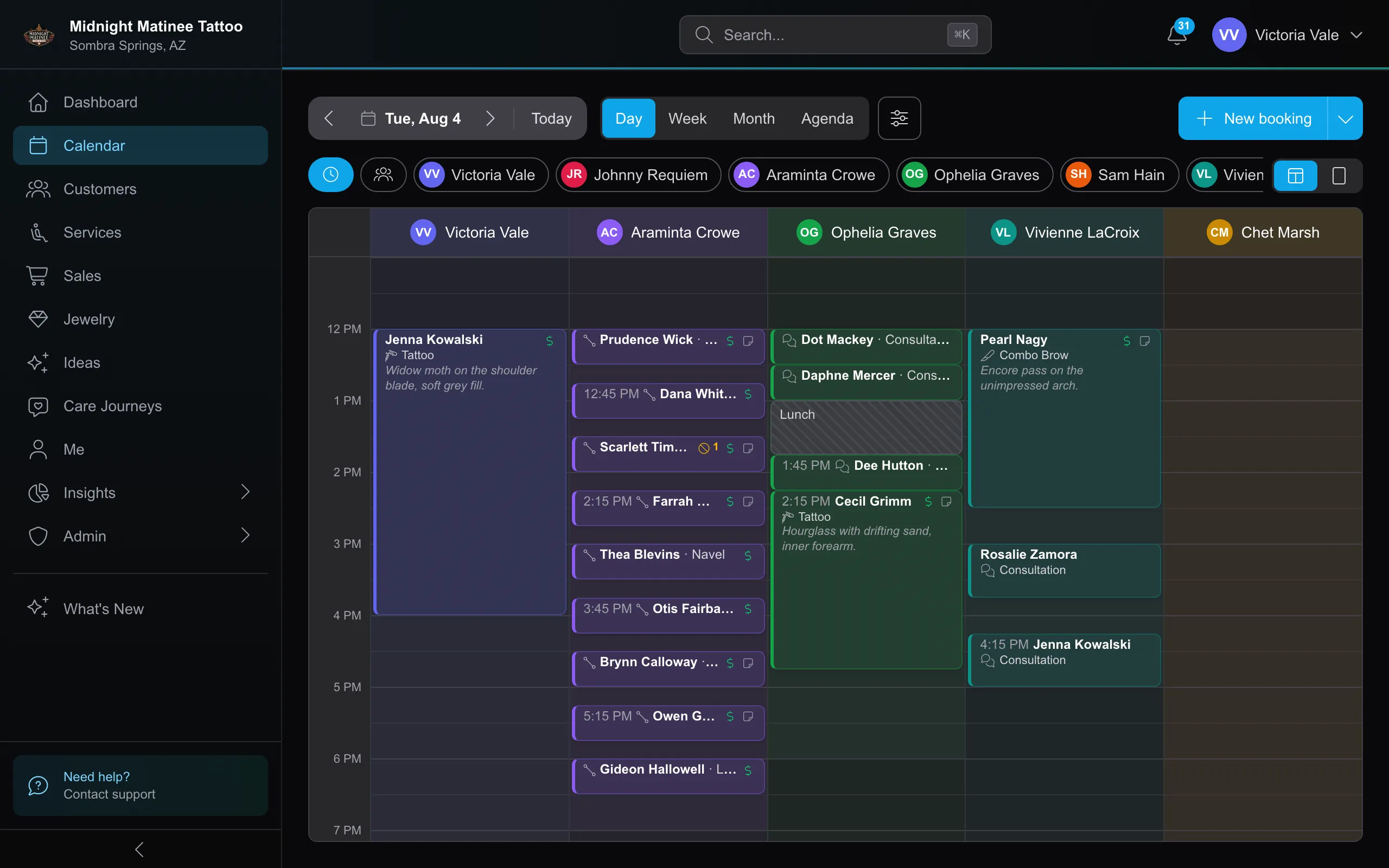
Four views: Day, Week, Month, and Agenda. Day shows artist columns side by side, or everyone in one column colored by artist; a layout toggle switches between them. Week reads best filtered to one artist. Agenda is a list: compact rows on a phone, a full day workspace with columns for time, customer, service, artist, and status on a desktop.
The artist filter switches between Working today (anyone with hours or a booking that day — the default whenever that’s not everyone) and Everyone, or a single artist. Overlapping bookings show side by side, the current time is always marked, and new or changed bookings appear in place without a refresh. Selecting any booking gives you its summary and the common actions; no-show and cancel confirm right there without leaving the calendar.
Find a booking
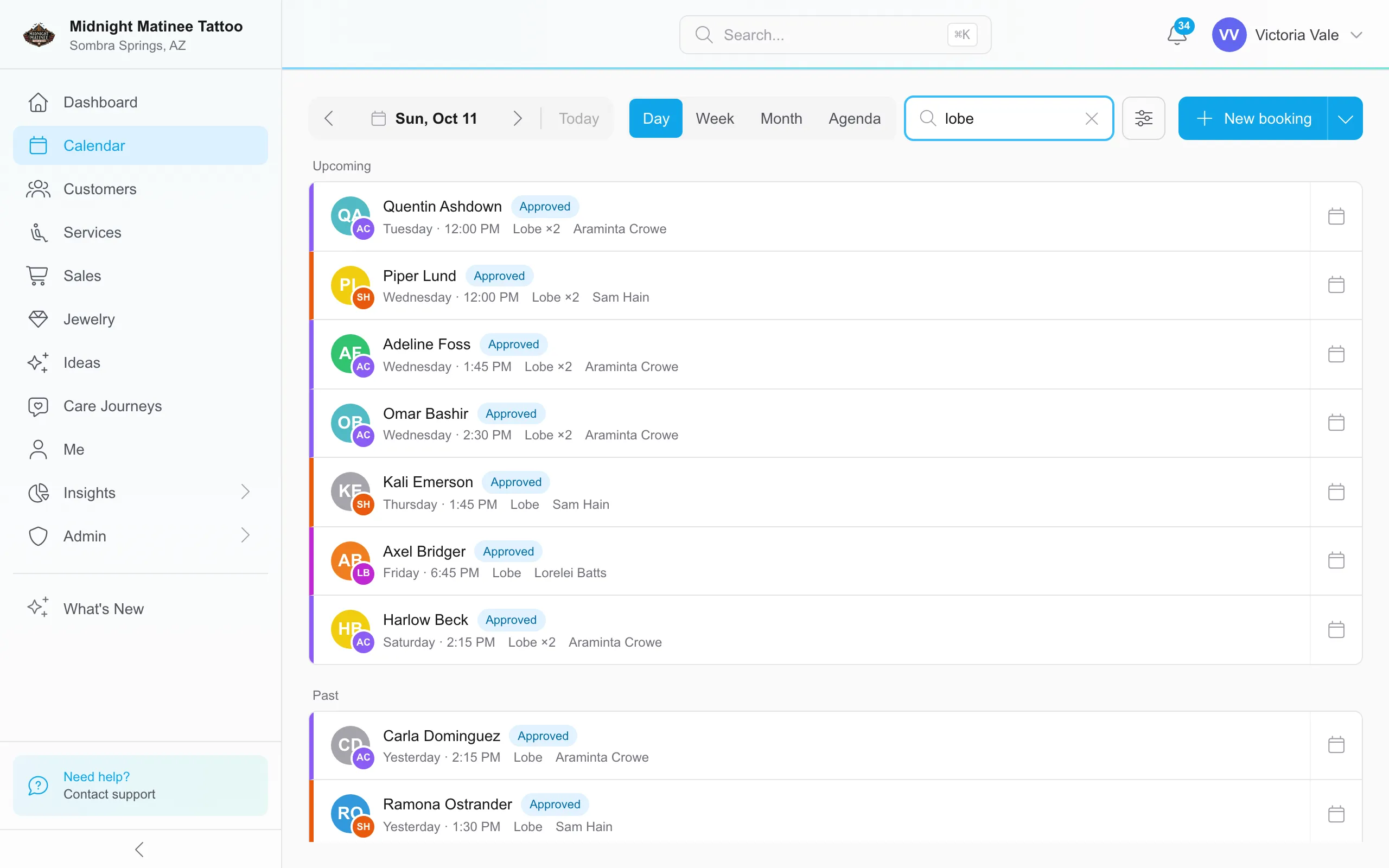
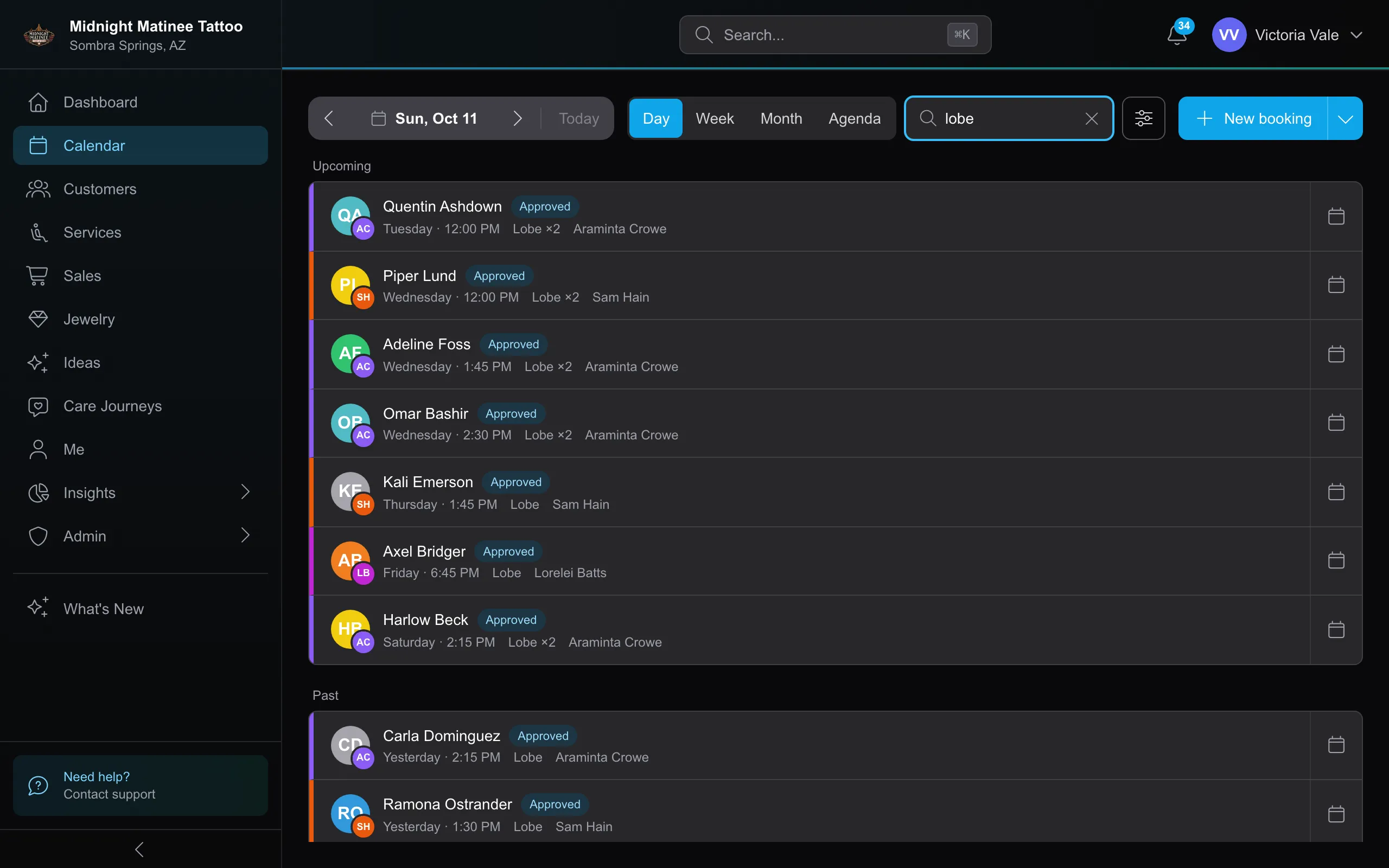
Section titled “Find a booking”Select and enter at least two characters. Search covers customer names and contact details, artists, services, descriptions, notes, referral sources, and booking IDs. Results include Upcoming and Past bookings, personal calendar events, and bookings parked to reschedule.
Search follows your booking access across the Cloud, including other studios, and does not use the calendar’s artist filters. Walk-in holds are excluded. Open a result to manage it, or use Show on calendar to jump to its day. Parked bookings have no calendar time to jump to.
Walk-in holds
Section titled “Walk-in holds”Starting unbooked work can reserve the artist’s calendar. New holds link to the service: choose Open service to manage the work, or Edit block to change the reserved time. While the work is running, the hold is In progress.
A hold follows reassignment of future or unended work and is removed when the associated work is cancelled. When the last running session in the sitting ends early, its hold shortens to that end time. This cleanup never extends the hold. Older holds may have no service link.
Who’s on the calendar
Section titled “Who’s on the calendar”Everyone who is active, holds an artist seat, and works at the current studio gets a column and a place in the artist filter. A seat can only be assigned to someone with at least one skill, so in practice that’s your service providers — counter staff and managers without seats never appear. Studio assignments set the outer limit, and weekly schedule rows can narrow the provider roster further. An artist whose permissions cover only their own bookings sees just their own column.
Before you customize it, your own column comes first and everyone else follows the order from Artists & Team Members. Change who appears and their order under Display options → Artists.
Colors
Section titled “Colors”Every artist has a color, generated from their name until one is chosen. Artists pick their own on Me, and anyone who manages users can set a person’s color from their Artists & Team Members page. On the day view it tints the artist’s column and header, and it marks their avatar everywhere.
Booking cards use the service type’s color when the type has one, and the artist’s color when it doesn’t; consultations and walk-in holds always use the artist’s color. Set service type colors on the Service Types settings page. The combined day layout is the exception — it colors every booking by its artist, so all of one person’s bookings match.
Display options
Section titled “Display options”The display menu (top right) holds:
- Other studios — multi-studio shops can show other locations’ bookings ghosted on day and week views. Tapping one names its location and offers a switch-to-manage link, because a booking is always managed at the location that owns it. Coworkers see who and when plus which studio owns it; the service, artist, note, and every action stay hidden. An artist viewing their own appointment at another location sees its full details.
- Inactive appointments — show or hide cancelled, declined, no-show, and deposit-expired bookings.
- Artists — when more than one artist is on the calendar, choose who appears and set their order. Your choice stays with your account and studio in the current browser; it does not change the order used by public booking or Kiosk.
- Week starts on — any weekday can start the week (a Tuesday-to-Saturday shop starts on Tuesday). This is remembered per device and doesn’t change anything for the rest of the team.
- Time interval — how fine the day and week grids slice, from 15 to 60 minutes.
On a phone or tablet, a sideways flick steps the date: a day in Day and Agenda, a week in Week, a month in Month. Where the view pans sideways (artist columns, the week’s days), panning comes first; the flick past the last column turns the page.
Creating from the calendar
Section titled “Creating from the calendar”The New booking button carries a menu of everything the calendar can add:
- New booking — a customer appointment, with slot search, deposits, the works.
- Calendar event — a named all-day or timed entry with no customer. For can be one artist, the Whole studio, or All studios. Reserve this time prevents booking during the event and is on by default. Clear it to keep the time bookable; the agenda then lists the event under Reminders. Use Schedules for full days off and repeating closures.
- Book with me — a one-time booking link for a specific block of time.
- Share booking link — your public booking page as a link or QR code.
- Subscribe to schedule — add your appointments to another calendar app through a private calendar subscription.
Clicking an empty slot offers the same, plus Reschedule an appointment here: a picker that leads with parked bookings from the Reschedule queue, then the artist’s upcoming appointments, and moves one into the gap through the normal conflict and attribution checks.
Drag to reschedule
Section titled “Drag to reschedule”Grab a booking on the day or week grid and drop it where it goes. On the day view, dragging across artist columns reassigns the artist; on the week view, dragging across days changes the date. Vertical drags snap to the grid interval with a live time hint, and dragging a card’s edge adjusts its length.
With a mouse you just drag. On a phone or tablet the finger has two jobs, so the gestures split: a tap opens the booking, and a press-and-hold grabs it. A held booking can be moved, or resized from its edges, and a tap anywhere else sets it down. Press-and-hold on empty space opens the same menu as selecting an empty slot.
Dropping onto occupied time raises a Schedule conflict dialog naming the exact overlap (what the artist already has, and when), with Move anyway and Put it back. You can overlap deliberately; customers booking online never can. Bookings can’t be dragged into the past; cancelled, no-show, and other-studio bookings aren’t draggable, and neither is a booking whose visit has started.
Ordinary drags count as studio-requested moves, so they never ding the customer’s reliability.
Studio time off on the calendar
Section titled “Studio time off on the calendar”A studio closure or holiday closes each artist’s calendar for that day, with the closure and its reason visible in every view — a posted closure binds online even when Allow bookings outside studio hours is on. Staff can still book a fully closed day from the calendar.