

Booking Rules
Booking rules decide who can book what, and when, on the public booking page. Two kinds exist, and the model is simple: Block rules always win, and Only allow rules restrict the bookings in their scope to the times you set; anything outside the scope is untouched. Rules hard-block only customers booking online; saving a booking from the calendar that a rule covers warns you which rule is in the way, and you can book anyway.
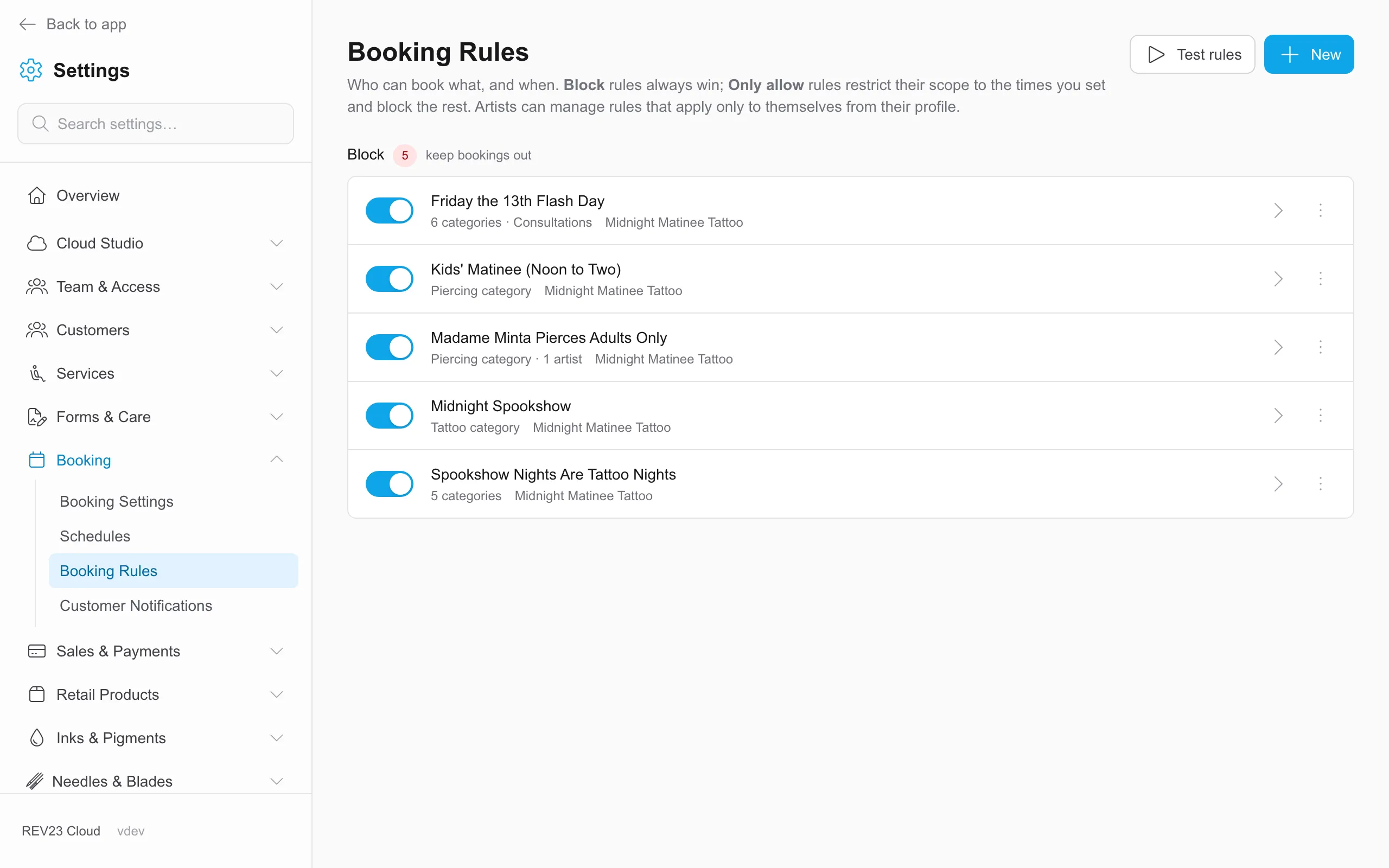
Manage them at Settings → Booking → Booking Rules. Artists can manage rules that apply only to themselves from My Schedule.
The rule editor
Section titled “The rule editor”A rule reads as a sentence, and the editor is organized to write one.
Basics — name the rule, note why it exists for the team, and pick what it does: Block (“blocks the bookings below at the times you set, or always, if you set no times”) or Only allow (“allows the bookings below only at the times you set, and blocks them otherwise”). You can also write the message customers see when the rule blocks them, e.g. “Call the studio to book this.”
Artists — whose bookings the rule is about. Leave empty for everyone, or pick people to make it a rule just for them.
Which booking — what the rule touches:
- Service categories and specific service types
- Consultations — included as a peer of the service filters, so one rule can cover “tattoo services and consultations”
- Minimum / maximum age — “Maximum 17” for under-18s, “Minimum 18” for adults only
- Minimum / maximum length in minutes
- Customer flags (Block rules only) — matches a customer carrying any of the chosen flags
- Customer history with the studio — see below
An Only allow rule must scope to something: otherwise it would limit every booking in the studio to its times.
When it’s blocked / allowed — day of week, time of day, month, and day of month combine into recurring patterns (“Friday the 13th” is day-of-week Friday + day-of-month 13). A one-off event uses a date range instead.
Customer history conditions
Section titled “Customer history conditions”Rules can target how a customer has actually behaved:
| Condition | Counts |
|---|---|
| Completed work (services) | Finished services. “At most 0” means new customers only. |
| No-shows | Times they didn’t show, unless later forgiven. |
| Cancellations | Cancellations the customer asked for, unless excused or forgiven. Studio cancels never count. |
| Unpaid deposits (expired) | Bookings whose deposit offer lapsed unpaid. |
| Customer reschedules (counted) | Moves the customer asked for. Studio moves, corrections, and excused requests don’t count. |
| All reliability events (combined) | Counted no-shows + cancellations + reschedules in one total. |
Each takes an At least and/or At most count and an optional Window in weeks (blank means all time). Attribution and forgiveness carry through everywhere they apply: an event the studio caused, excused, or later forgave doesn’t count against the customer here. Only Completed work and Unpaid deposits (expired) are plain counts.
Presets
Section titled “Presets”The editor starts from ready-made templates covering the common policies: No tattoos under 18 · Minor piercings — limited hours · Block repeat no-shows (2+ in a year) · Block repeat unpaid deposits (2+ in three months) · Block repeat reschedulers (3+ counted) · Books closed to new customers · Closed for an event day · Friday the 13th walk-ins only · Block flagged payment risks. Pick one, adjust, save.
Recipes
Section titled “Recipes”Use Booking Rule Recipes for fixed start times, limited hours for minors, customer history policies, and event days.
Testing rules
Section titled “Testing rules”Test rules on the rules list runs a booking scenario through your rule set and shows the outcome, including the exact message a blocked customer would see. Use it before an event day goes live, not after the first confused phone call.
Three levels of blocking
Section titled “Three levels of blocking”Rules are the finest-grained of three ways to keep a booking out, and they stack:
- Customer — the block-from-booking toggle on a customer’s Bookings tab. Absolute: no rule or flag needed.
- Flag — a Block rule scoped to customer flags catches everyone carrying the flag.
- Rule — everything else on this page.
Permissions
Section titled “Permissions”Editing booking rules takes Booking Settings → Manage — included in the Manager role. See Roles & Permissions.