

Card Payments
REV23 Payments brings card processing into the same checkout you already use: online booking deposits, countertop terminals, and Bluetooth readers, all landing on the sale. Setup lives at Settings → Sales & Payments → REV23 Payments — owner-only, like all studio payment setup.
Two processors
Section titled “Two processors”You can connect Stripe, Fiserv, or both.
- Stripe — Available to U.S. and Canadian studios. Complete Stripe’s online verification with bank, identity, and business details. REV23 uses the studio’s business-address country for its payment account. There is no long-term contract; pricing is Stripe’s standard rate plus a 1% REV23 fee. Payments turn on after Stripe approves the account, and the status card identifies any remaining requirements.
- Fiserv — rates you negotiate directly with Fiserv. Apply for a merchant account, Fiserv follows up personally to review your business and pricing (onboarding typically 24–48 hours after signing), and you connect with the 12-digit Merchant ID they issue. Lower processing cost at higher volume.
A processor connection can serve one studio or all of them. Once an account has ever processed a payment it can’t be deleted — that would break refunds on past sales — so retiring one means deactivating it.
For multiple locations, a new studio payment account defaults to the studio selected in the switcher. Choose All studios to share it across locations. You can change an existing account’s Studio assignment, but before narrowing it to one studio, remove its registered readers at the other locations. An artist’s personal deposit account cannot be reassigned this way.
Hardware
Section titled “Hardware”- Countertop terminals — the Bolt terminal (Fiserv) and Stripe’s smart readers. Registered per studio under the processor, with one default terminal per studio picked automatically at checkout. REV23 discovers Bolt terminals from your Fiserv account and offers to add them; Stripe readers pair with the code on their screen. Terminals work from any platform, web included — the charge runs server-side.
- Bluetooth readers — Clover Go (Fiserv) and Stripe Reader M2, for taking cards at the counter, a convention, or a guest spot. A reader pairs to a device, not a studio: each iPhone, iPad, or Android sets up its own under Settings → Sales & Payments → Bluetooth Reader, and it appears at checkout on that device. Reader payments need the app because a browser cannot connect to the reader. If Bluetooth is off, REV23 stops the payment and reports the problem.
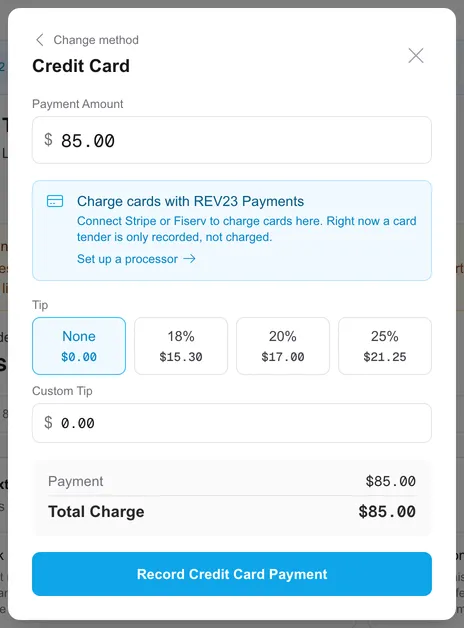
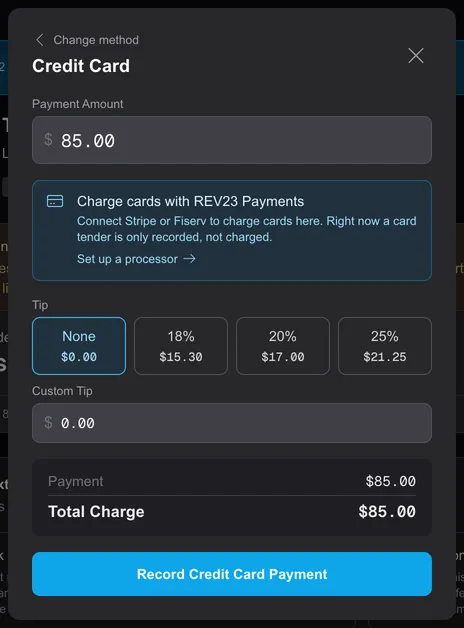
At the register, a card tender offers whichever modes exist: Terminal, Bluetooth, and Manual — manual meaning the tender is recorded but no card is charged, which is also the only card mode when no processor is connected. Keyed entry for a card that won’t read happens on the Bolt’s own keypad; Stripe smart readers don’t take keyed entry. Full card numbers are never typed into REV23.
Pair a Bluetooth reader
Section titled “Pair a Bluetooth reader”Pairing is available only in the REV23 app for iOS and Android. A payment account must already be connected for the current studio. The pairing belongs to the phone or tablet, so repeat these steps on each device that will take reader payments.
- Charge and turn on the Clover Go or Stripe Reader M2, then keep it near the phone or tablet.
- Open Settings → Sales & Payments → Bluetooth Reader.
- Allow Bluetooth and location access when the device asks. REV23 uses them to discover nearby readers.
- Select Find nearby readers.
- Find the reader by its displayed name or serial number and select Connect.
- Keep the reader powered on and nearby while it connects. A required software update can take several minutes; REV23 shows its progress.
- Confirm that the page shows Connected and the reader’s battery level.
Select Disconnect before pairing a different reader to the device. If card processing is not set up for the studio, an owner must connect Stripe or Fiserv under Settings → Sales & Payments → REV23 Payments first.
Take a Bluetooth payment
Section titled “Take a Bluetooth payment”- Open the checkout and select the card payment action.
- Choose Bluetooth when REV23 asks how to take the card.
- Confirm the payment amount. Complete the customer-facing tip step when it appears.
- Follow the screen and reader prompts to present the card.
- Wait for the approved result before moving away from checkout.
If Bluetooth is off or the reader is disconnected, REV23 stops the payment and identifies the connection problem. Reconnect under Settings → Sales & Payments → Bluetooth Reader, then retry the card payment.
Card surcharges
Section titled “Card surcharges”Both rails can pass card costs to the customer; who controls the rate differs.
- Fiserv boards surcharging on your merchant account — the rate is set with Fiserv, not in REV23, and the merchant status card shows what’s enrolled. The Bolt applies the fee on the device as part of the sale.
- Stripe surcharging is set in REV23, up to 4%. Stripe keeps each charge within the card’s legal limit and never surcharges debit. Readers apply the fee without showing it on screen before payment, so post your surcharge notice at the counter; it does appear on the customer’s receipt.
Processor surcharges replace any checkout-rule card surcharge on those charges — the card is never surcharged twice. Tips are never surcharged on either rail.
Tips on the hardware
Section titled “Tips on the hardware”Countertop terminals collect the tip on the device. Bluetooth readers use the in-app customer-facing tip screen — the Stripe Reader M2 asks before the card is presented, Clover Go right after the card is read. Your tip presets drive all of these prompts.
Paper receipts
Section titled “Paper receipts”The Paper receipts setting decides what a printer-equipped terminal does, per location: Always print, Ask each sale (nothing prints until you tap Print receipt on the approved sale), or Never print. It only governs the terminal’s paper — the emailed and printed REV23 receipts are unaffected. Today the Bolt is the terminal with a printer; Stripe smart readers and Bluetooth readers don’t print.
If a charge and a sale disagree
Section titled “If a charge and a sale disagree”Card payment needs checking means the payment may have gone through, but REV23 has not confirmed the result. Check payment checks the original attempt without charging again. Another payment stays blocked until its status is resolved.
Use Recover a card charge when the processor completed a charge but REV23 did not record the sale, such as after an app crash or dropped connection. Enter the processor’s transaction reference (Stripe’s pi_… PaymentIntent ID, or the Ref/RetRef from a Fiserv receipt) to find the charge and record it on the sale. A charge can be recorded only once across the Cloud. A tip left on the payment device cannot be recovered from the charge; assign it on the sale after recording.